Wednesday, 9 March 2016

How to Solve Insufficient Storage problem in Android .

How to Get Rid of Insufficient storage Space Problem in android without root .

Do you get insufficient storage available error while downloading files from google playstore Or When you try to install a app or download a file you see the Less storage space available error on screen ? if yes then you are at right place . Today we are here with a guide on How to Fix Insufficient storage problem in android phone without root .

it happens many time when we want to download any app from Google Playstore and we get Less storage error . The problem of Insufficient storage mainly comes in smartphones like micromax,intex,Samsung,lava,karbonn,xolo and other old brands that doesn't come with features like space optimization . So today in this guide we will tell you How to Fix Insufficient storage problem in android smartphone without root .
fix-less-storage-error-in-google-playstore

How to Fix Insufficient Storage Available error in Google playstore .

So in this guide to solve the insufficient storage available on this device we will use 5 simple methods .  

Trick to buy xiaomi redmi note 3 from amazon flash sale .

So starting with the First Method .

Solve Insufficient storage available in this Device Problem By Clearing Cache :- 

fix-insufficient-error in-android-playstore
Now as in the above image you can see that there is a Cached data section of 801 mb which is basically useless . So here is How you can clear the cached Data and fix the no storage space available error .


  • First of all Go to the Settings of your android smartphone .
  • Now search for Storage settings .
  • After going in the storage settings you will see a Option of Cached data , Simply press it . After pressing you will see that the Cached data is now reduced to 0 mb . 
  • So this was the first way to Solve the Insufficient storage problem in android .
Now you might be thinking what is cached data and its advantages and disadvantages . 

Cached Data is temporary data stored by app developers . What the cached data do is whenever you open any website or app the cached files will be used instead of downloading again from servers . 

Advantages :- 

The cached data helps in loading the apps and some websites faster .

Disadvantages :- 

As we mentioned earlier that the data is stored in your smartphone so it is obvious that it will take space on your smartphone . Sometimes the cached data size can reach upto 1.2gb in size . 

It Freezes the smartphone while using some apps .

Makes down the smartphone slow .

So by clearing the cache you will be able to Solve the Insufficient storage available on this device problem .

Fix insufficient storage available on this device Google playstore error .

fix-google-playstore-error-of-low-storage
Method 2 to fix insufficient storage error :- Moving Apps to Sdcard .

By default android downloads the apps to Internal storage of smartphone and sometimes due to Many apps we get insufficient storage space error . There are many apps ( Not all ) you can move to Sd card and increase the Space in your internal storage .

Here is How yo can move apps to Sd card to Fix the insufficient storage available in this device error .

  • Goto settings > applications > all .
  • Now Open every app on by one .
  • Whenever you will open a app you will see a Move To Sdcard option .
  • However in some case you will see that the Move to Sdcard option is blurred which means the app cant be moved to sd card . 
So by moving apps to Sdcard you will be able to solve insufficient storage available error in android .

Method 3 to solve insufficient storage available error

stop-insufficient-storage-error-in-google-playstore-android

Sometimes the default apps in our android phone start making files itself and they are very big in size . The most common file which we find is the Thumbdata which is created by the gallery application of a android phone .

So here is How you can delete those unwanted apps and Fix Insufficient storage error in android .

  • Go to your file explorer .
  • Now search for .thumbnail file .
  • After searching you will see many results . 
  • Now delete them one by one .
  • After deleting you will see that you will bot receive Insufficient storage available error while downloading apps from google playstore .

Method 4 To Solve Insufficient storage Problem in android .

wipe-dalvik-cache

In the 1st method we told you to Clear cached data of apps and that is easy and can be done manually . But what about the System Cache ? So in this Method we will tell you to clear the system cache to solve the insufficient space error .

Here is How to clear dalvik cache to solve the Insufficient storage space error .

  • First of all turn off your smartphone .
  • After turning off boot the smartphone into cwm recovery .
  • To boot into cwm recovery press Volume up + power button together .
  • After booting into cwm recovery you will see many option .
  • Choose Wipe Cache Partition .
  • Then go to advanced settings and Choose wipe dalvik cache .
  • After clearing cache go back to main screen and choose Reboot system now .
The Boot will take some time . 

If still all of the above doesn't works the Try the Last and for Sure working method to Fix the Insufficient storage problem in android .

Method 5 .

reset-phone-to-solve-the-insufficient-storage-problem-in-playstore

In the 5th method we will tell you how to Reset your smartphone to get rid of the Insufficient storage available error .

Please remember that after resting your smartphone you will loose all your apps and files which includes the Images,contacts,songs and every file present on your android smartphone . So it is recommended to take a backup of your smartphone .

  • First of all make a backup as mentioned earlier .
  • Now go to settings of your smartphone .
  • Now you will see a option of Backup/reset .
  • Open it .
  • And select the last option " Erase data on phone / Factory reset " .
  • After selecting you will be asked to confirm resetting the phone .
  • Choose Ok .
  • The resetting process will be started .
  • And after the Successfully Completion the smartphone will be rebooted .
Thats all !!! You have successfully solved the Insufficient storage error in android .

So this was our guide on How to Fix insufficient storage   available on this device error while downloading games from google playstore in android , i Hope this guide helped you in solving the Insufficient storage problem in android .

Tuesday, 8 March 2016

How to Root Samsung Galaxy S7 .

Root Samsung Galaxy S7 G930,G930F,G930FD

Do you want to know how to root Samsung galaxy s7 successfully  ? today we are with the method to root Samsung galaxy S7 easily . In this guide we will use a Computer because Root samsung Galaxy s7 without pc is yet not possible . 

Samsung galaxy s7 is the latest flagship device from Samsung launhced in 2016 . The smartphone comes with some great features like the super amoled 2K display with a Pixel density of 557 pixels per inch and Corning gorilla glass 4 for Screen security . Along with the Samsung Exynos 8890 Processor there is a 4Gb ram .  The phone also comes with fingerprint sensor . 

Okay , So now starting the guide on How to root samsung galaxy s7 .


Root-samsung-galaxy-s7-without-using-pc


Method to Root Samsung Galaxy S7 Safely using computer .

There are many benefits of rooting but the biggest benefit is that after rooting Samsung galaxy s7 you will be able to update Samsung galaxy s7 to latest android version .

Samsung galaxy S7 review .

Here are some points you have to remember before rooting samsung galaxy s7 .


  • After rooting samsung galaxy s7 your warranty will end .
  • Charge the samsung galaxy s7 to minimum 70% .
  • A Laptop or computer with internet connection is required . 
  • It is recommend to take backup of all your contacts and important files . 

Okay now starting the guide :- 

How to Get Root Access On Samsung galaxy S7 .

  • First of all download Download Kingroot From Here .
  • Now after downloading install it .
  • After installing , Connect your galaxy s7 to computer via USB cable .
  • Now open the Kingoroot app . After opening kingoroot app you will see :- 
Root-samsung-galaxy-s7-without-using-pc
  • Now to recognize the Samsung galaxy s7 in your Pc you will need to enable the Usb Debugging mode . 
  • To enable usb Debugging mode Go to settings you will see Developers option there , Enable it .
  • Now after enabling the Debugging mode to root Samsung galaxy s7 you will see that the S7 has been recognized by the pc :- 
Root-samsung-galaxy-s7-without-using-pc
  • Now you will see the ROOT option , Before rooting it is recommended that you read all the root notifications before rooting samsung galaxy s7 .
  • Now after reading all the Points Press on Root . 
  • As soon as you press the root button your samsung galaxy s7 will start rooting .
Root-samsung-galaxy-s7-without-using-pc
  • It will take some time to root Samsung galaxy s7 .
  • After successfully rooting the Device you will see that kingroot says the samsung galaxy s7 is successfully rooted .
Root-samsung-galaxy-s7-without-using-pc
  • Now press finish . 
  • Make a reboot .
  • After rebooting go to playstore .
  • Download the app called " Root Checker " to check if your samsung galaxy s7 is rooted or not .
  • If the app Says Root available then it means the device is successfully rooted  .
So this was our guide on How to root Samsung galaxy s7 by using computer . The method to root samsung galaxy s7 without using computer will be updated soon . Till then you can use this method to Root Samsung galaxy s7 .

Sunday, 6 March 2016

Amazon Free Delivery Trick to Avoid Shipping Charges

How to buy Products from Amazon without Paying Delivery charges .

As all of you know that amazon dont offer free delivery on products below 499 rs . Today we will tell you the trick to get free home delivery from amazon on products below 499 rupees . Amazon is india's biggest e-commerce marketplace , Recently in a report released Amazon was the most visited online store in india in terms of traffic , But the biggest drawback of Amazon is that whenever you buy a product less then rupees 499 you need to pay a Fixed shipping charge . So today we are here with a trick with you will be able to Get free home delivery from amazon on Products below 499 rupees .

Amazon-2016-trick-to-get-free-home-delivery-on-any-product

Amazon 2016 Trick to Get Free Home Delivery .

As i mentioned earlier that amazon doesn't allow you to get free delivery on products less then 499 rupees  . So even if you buy a product of 5 rupees product you will need to pay 40 rupees as delivery charge which is seriously disappointing . So today we will tell you the Trick to get free Delivery on any product in amazon .

Amazon's Packing system is totally different from Flipkart's Packaging system . What flipkart do is if you buy two products from flipkart then they will pack both two products in two different boxes so in that case you can cancel one product and avail free delivery on any product , But in case of amazon if you order 2 products then both will be packed in a same box .

You may also like :- Flipkart free Delivery Trick .

Avail Free Delivery on Any Product on Amazon .

Okay Starting with the Trick to Get free Delivery from Amazon .

  • First of All visit Amazon From HERE .
  • Now after visiting Search for the product you want to buy .
  • Now add the product in to your cart .
  • After adding the product in cart you will see that amazon has applied delivery charges on your product .
Amazon-2016-trick-to-get-free-home-delivery-on-any-product

  • Now Comes the main part .
  • To Skip delivery charges Go Here .
  • Now you will see products starting just from 25 rupees .
  • Now add any product .
  • After adding any product from the above given link you will see that the Delivery charges added to Order total has been removed .
  • So thats all !!! You have successfully bought product from amazon without paying delivery charges .
So this was our guide on Trick to Get free home delivery on Any product from amazon , I hope this guide helped you in Buying from amazon without paying delivery charges .

Trick to Buy Xiaomi redmi note 3 from Amazon in Flash sale .

How to Put Mi Redmi note 3 in Cart Amazon flash sale - Trick to buy Xiaomi redmi note 3 in Flash sale successfully .

Do you want to buy Xiaomi redmi note 3 from amazon or Mi Successfully in flash sale ? if yes then you are at right place . Today we are here with a Trick to put redmi note 3 pro in your cart without any problem .

In This trick to Autobuy the xiaomi redmi note 3 from amazon in flash sale we will use A Autobuying Script that will automatically add the Xiaomi redmi note 3 16Gb and 32Gb Automatically in your Cart . So this trick basically consist of :- 


  • Trick to Automatically Add/ Buy 32Gb Gold Xiaomi redmi note 3 in Cart from Amazon in flash sale .
  • Trick to Automatically Add Buy xiaomi redmi note 3 16Gb grey in Cart in Amazon Flash sale .
  • How to Automatically add Gold 16Gb Xiaomi redmi note 3 in cart on amazon flash sale .
  • Add Dark grey 16 Gb Xiaomi redmi note 3 From Amazon flash sale automatically in cart .


Xiaomi launched the Redmi note 3 snapdragon version on 3rd march in a event held in New Delhi . we wont be wrong if we say that xiaomi redmi note 3 pro is the best smartphone under 20k price segment . In a antutu benchmark test the xiaomi redmi note 3 pro scored a whooping score of around 72,000 which is even more then the flagship devices of india . The best part about the redmi note 3 pro is its affordable price tag of just 9,999 for the 16gb model and 11,999 for the 32gb model , So just because of the awesome features and Affordable price tag the smartphone received around 100,000 registrations in just 5 hours . due to much popularity it will be hard to buy the Redmi note 3 pro manually So today we are here with a Trick to Buy Xiaomi redmi note 3 pro from amazon successfully on flash sale day

How to Update Xiaomi redmi note 3 Snapdragon to android 6.0 Marshmallow .

As we already mentioned earlier that the xiaomi redmi note 3 snapdragon is based on snapdragon 650 Hexa core processor , this processor is so powerful that it even out ranked the Flagship processor Snapdragon 810 in terms of Antutu Benchmarks tests which is considered as the Best benchmarks app in the world . The reason behind power of Snapdragon 650 processor is its 2 Cortex A72 Chips which are the latest and modern chips , The Xiaomi redmi note 3 runs on 4 Cortex A53 processor and 2 Cortex A72 processor . Due to So much popularity of the smartphone it is hard to Buy xiaomi redmi note 3 in amazon flash sale , So today we will tell you a Script to Add xiaomi redmi note 3 automatically in your cart on amazon without waiting in wishlist

How does the Amazon xiaomi redmi note 3 Autobuying Script works

The Redmi note 3 autobuying script for amazon flash sale adds the Redmi note 3 automatically in your cart on flash sale day in amazon .

Trick to Buy any Product from amazon without paying delivery charges .
trick-to-add-redmi-note-3-automatically-in-cart-on-amazon-flash-sale


Automatically buy xiaomi redmi note 3 From amazon in flash sale .

In this trick to buy xiaomi redmi note 3 from amazon automatically we will use a Script that will help you to automatically add the Xiaomi redmi note 3 in the cart

Okay now starting with the guide on How to Add Xiaomi redmi note 3 successfully in your Cart on amazon flash sale


Script to Add Xiaomi redmi note 3 succesfully in Amazon cart in flash sale .


So we will use a script to add The Xiaomi redmi note 3 in cart on flash sale day

Here are the steps you need to Do :- 

  • First of all Go to the Amazon Xiaomi redmi 3 from Here .
  • Now register for the sale . 
  • After registering successfully you will see a confirmation notification from Amazon . 
trick-to-add-redmi-note-3-automatically-in-cart-on-amazon-flash-sale
Autobuying Xiaomi redmi note 3 Amazon Flash sale Script . 

var jq = document.createElement('script');
jq.src = "https://ajax.googleapis.com/ajax/libs/jquery/2.1.4/jquery.min.js";
document.getElementsByTagName('head')[0].appendChild(jq);

setInterval(function(){ jQuery("button:eq(0)").trigger('click'); console.log(' Working... '); },10);


  • Open the Xiaomi redmi note 3 flash sale page right 5 minutes before the flash sale . 
  •  Now open the Inspect element .
  • To open Inspect element press combination of CTRL+SHIFT+I .
  • Now you will see many options there choose CONSOLE .
  • After opening Console tab paste the Autobuying Script you copied earlier . 
  •  After pasting the script in Console tab press enter . 
  • Now Sit and Relax the script will do its work and will add the Xiaomi redmi note 3 automatically in cart on flash sale on amazon . 
Trick to Buy Xiaomi redmi note 3 Silver 16Gb from Amazon Flash Sale .


var jq = document.createElement('script');
jq.src = "https://ajax.googleapis.com/ajax/libs/jquery/2.1.4/jquery.min.js";
document.getElementsByTagName('head')[0].appendChild(jq);

setInterval(function(){ jQuery("button:eq(1)").trigger('click'); console.log(' Working... '); },10);


  • After Copying the Script .
  • Open the Xiaomi redmi note 3 Flash sale page right 5 minutes before the sale 
  • Right Click anywhere on the Screen and you will see a Inspect option .
  • Open that , After opening you will see a Console tab option .
  • Open that .
  • Now paste the Script you copied earlier and press enter .
  • After some time you will see that the Xiaomi redmi note 3 has been automatically added into your cart .
Trick to Buy Xiaomi redmi note 3 Gold 16Gb From Flash sale .


  • First of all Copy the autobuying script from Below :-

var jq = document.createElement('script');
jq.src = "https://ajax.googleapis.com/ajax/libs/jquery/2.1.4/jquery.min.js";
document.getElementsByTagName('head')[0].appendChild(jq);

setInterval(function(){ jQuery("button:eq(2)").trigger('click'); console.log(' Working... '); },10);


  • Now go to the Redmi note 3 16gb gold page from HERE .
  • Open the Redmi note 3 amazon flash sale Page 5 minutes earlier .
  • After Going to Amazon . Right click anywhere on the Screen .
  • Now you will see a Inspect element option .
  • Open that .
  • Now you will see a Console tab option .
  • open that .
  • After opening Paste the Script you copied earlier .
Trick to Buy Xiaomi redmi note 3 Dark grey 16Gb From Amazon flash sale .


  • First of all Copy the Script from Below .

var jq = document.createElement('script');
jq.src = "https://ajax.googleapis.com/ajax/libs/jquery/2.1.4/jquery.min.js";
document.getElementsByTagName('head')[0].appendChild(jq);

setInterval(function(){ jQuery("button:eq(3)").trigger('click'); console.log(' Working... '); },10);


  • Now open the Redmi note 3 Dark grey 16Gb page from Here .
  • Open the Xiaomi redmi note 3 Flash sale Page right 5 minutes before the flash sale page .
  • After going to amazon , right click anywhere on the screen .
  • Now you will see a Inspect element option .
  • Open it , After opeing you will see a Console Option .
  • Open it , After opening paste the Script . And Hit enter .
  • Now you will see that the Xiaomi redmi note 3 Dark grey 16Gb has been automatically added into cart .

Here is the Video on trick to Buy Xiaomi redmi note 3 from amazon in Flash sale :- 


You can also buy the Xiaomi redmi note 3 from Xiaomi's official  website . To buy the xiaomi redmi note 3 from Mi.com follow the below steps . 


How to Buy Xiaomi redmi Note 3 From Mi.com in Flash sale .

Xiaomi redmi note 3 will also be available on the xiaomi's official website but only in Golden Color . 


  • First of all register for the Xiaomi redmi note 3 flash sale on Mi official website from Here 
  • The sale will be held on 9th march . 
  • The redmi note 3 will be available only in golden Color . 

So this was our guide on How to Buy Redmi note 3 successfully in amazon flash sale , I hope the script to buy redmi note 3 in amazon flash sale helped you.

Thursday, 3 March 2016

Name And List of Devices Updating to Android 7.0 N .

Do you want to know the name of android smartphones updating to android N 7.0 . Today we are here with the List of smartphone that will be updated to latest android version N 7.0 . In this guide we will tell you the name of android mobile upgrading with android N 7.0

Android N 7.0 touted as Android Nutella is the latest android version from google . Android 7.0 nutella is the successor of android 6.0 marshmallow . before going to the names of smartphone updating to android N 7.0 let us have look at some of the features of android N 7.0 . The biggest update in the android 7.0 is that it will come with no app drawer , which means you will get all apps and games straight one the home screen itself . The next big feature in the coming android 7.0 n is the More security and more battery life feature . As all of you know that android smartphones are more vulnerable to risks so in the android 7.0 nutella there will be more security . To know more about the features , name and launch date of Android 7.0 nutella you can visit our guide on Android 7.0 N name features and Launch date


Devices-updating-with-android-7.0-n

Name of Android Smartphone that will update to Android 7.0 Nutella . 

So starting with the List of android N 7.0 upgrading smartphone :- 

List of Samsung smartphones Updating to Android 7.0 Nutella .

  • Samsung Galaxy S7 .
  • Samsung galaxy S7 edge .
  • Samsung Galaxy S6 .
  • Samsung Galaxy S6 edge . 
  • Samsung galaxy S5 .
  • Sasmung Galaxy Note 5.
  • Samsung Galaxy Note 4 .
  • Samsung Galaxy Aplha .
  • Samsung Galaxy A8 .
  • Samsung Galaxy A7 .

List of Sony Smartphones updating to Android 7.0 N .

  • Sony xperia Z5 premium .
  • Sony xperia Z5 
  • Sony xperia Z5 compact .
  • Sony xperia C5 Ultra 
  • Sony xperia C4
  • Sony xperia M5 
  • Sony xperia M4 Aqua.
List of Lg Devices Upgrading to Android 7.0 N .

  • Lg G5 .
  • Lg G4 .
  • Lg Flex .

List of Lava Devices upgrading to Android 7.0 N .

  • Lava iris X8 . 
  • Lava V5 .
  • Lava Pixel V1
  • Lava pixle v2 . 
  • Lava X10 .

List of Micromax Devices updating to Android 7.0 N nutella .

  • Micromax canvas Knight .
  • Micromax Turbo .
  • Micromax Unite 2 .
  • micromax canvas 4 .
  • Micromax Canvas 5 .
  • Micromax canvas nitro .
  • Micromax One .
  • Micromax canvas Sliver 5 . 
  • Micromax Canvas Gold .

List of Xiaomi Devices upgrading to Android 7.0 N nutella .

  • Xiaomi Mi note / pro .
  • Xiaomi Mi4.
  • Xiaomi redmi note 3 .
  • Xiaomi Redmi note 3 Snapdragon .
  • Xiaomi Mi 3.

List of Asus Smartphones upgrading with android N 7.0 .

  • Asus Zenfone 5 .
  • Asus Zenfone Max
  • Asus Zenfone Zoom .

List of One Plus Devices updating to android 7.0 N .

  • One Plus one .
  • One Plus two .

List of Lenovo Devices updating to Android 7.0 N .

  • Lenovo K5 note .
  • Lenovo K4 Note .
  • Lenovo K3 note .
  • Lenovo Vibe X1 .
  • Lenovo A6000 .
  • Lenovo A7000 Turbo .

List of Yu Mobile Updating to android 7.0 n .

  • Yu Yutopia .
  • Yu Yuphoria.
  • Yu Yureka Plus .

List of Meizu Android smartphone updating to android 7.0 N .

  • Meizu Mx 5 .
  • Meizu M2 note .

Huawei :- 

  • Huawei Honor 5X .
  • Huawie Ascend P8 . 
  • huawei Ascend p8 max 
  • Huawei Honor 6 plus . 
  • Huawei mate s .
Motorolla :- 

  • Motorola Moto X pure Edition .
  • Motorola Moto X Style 
  • Motorola Moto X Play
  • Motorola Droid Turbo
  • Motorola Moto Turbo

HTC :- 

  • HTC ONE M9 plus 
  • HTC ONE E9 Plus .


 Note :- The list of devices updating to android N 7.0 is not official , the Name of devices given here is a combination of Sources and on the basis of their Hardware capabilities . The list will be updated .

So this was our guide on the Name of Devices updating to android 7.0 N .

Tuesday, 1 March 2016

How to Stop Channel 50 Sms .

Do you want to Stop channel 50 Messages in your micromax , lenovo,intex,karbonn or any other android Smartphone ? Today we are here with a guide in which we will tell you How to get Rid of Channel 50 sms in your android smartphone . 

Smartphones from companies like Lenovo , intex, lenovo , xolo ,karbonn and many other comes with a service called Channel 50 and when the Channel 50 Sms service is activated then you receive sms from Channel 50 every minute and that is obviously irritating . 
In this guide we will tell you how to Deactivate Channel 50 sms


Deactivate-channel-50-sms-messages-micromax-intex-lenovo-karbonn-xolo

The problem of Channel 50 messages usually comes in the Chinese smartphones like Micromax,xolo,lenovo,lava,karbonn and intex . So lets start the guide on How to deactivate Channel 50 messages .

Xiaomi mi 5 , Mi 5 pro Review .


  • First of all go to the Messages > inbox . 
  • Then open settings of your smartphone . 
  • After going to settings you will see many options . 
Deactivate-channel-50-sms-messages-micromax-intex-lenovo-karbonn-xolo
  • Open general settings .

Deactivate-channel-50-sms-messages-micromax-intex-lenovo-karbonn-xolo
 Now open Cell broadcast settings .
Deactivate-channel-50-sms-messages-micromax-intex-lenovo-karbonn-xolo

  • Now you will see that Cell broadcast is disabled . 
  • Enable it .
  • After Enabling go to Sim card cell broadcast settings . 
  • Now you will see a Channel named as " Channel 50 " .
  • Open it .
  • After opening , you will see a option to Deactivate channel 50 sms service
Thats all !!! now just reboot your smartphone to complete the process of Disabling Channel 50 Sms service

So this was our guide on How to stop channel 50 messages on Micromax Bolt,lenovo,Xolo,karbonn,intex android smartphones .

Monday, 29 February 2016

Update Micromax Doodle 2 To 6.0 Marshmallow .

Do you want to upgrade Micromax canvas doodle 2 A240 to android 6.0 Marshmallow ? if yes then you are at right place . Today we are here with a guide in which we will tell you How to Update Micromax Doodle 2 A240 to android 6.0 marshmallow

Micromax Doodle 2 A240 is the Successor of Micromax's first Doodle smartphone .Before going to the guide on How to Update Micromax doodle 2 to android 6.0 marshmallow lets have a look at the specifications of the smartphone .Micromax doodle 2 A240 comes with a 5.7 inch Hd screen with a pixel density of 248 pixels per inch . In the camera segment there is a 12 Mega pixel camera at the back and a 5 Mp camera unit is placed at front end . Doodle 2 A240 is a Mediatek based device with a 1.2ghz Quad core processor coupled with 1 Gb ram . 

Android N 7.0 Features , Name and Update List .
Okay now without wasting much time lets head over to the guide on How to update Micromax Doodle 2 A240 To android 6.0 Marshmallow

Update-micromax-doodle-2-android-6.0-marshmallow

Android 6.0 marshmallow is the latest android version from google and today in this guide we are going to tell you How to upgrade micromax Doodle 2 A240 to android 6.0 Marshmallow

We will use a android 6.0 Marshmallow custom rom to update micromax doodle 2 A240 to android M 6.0 . The rom is based on android 5.0 lollipop and themed on Android 6.0 marshmallow . 

Here are some Points you need to remember before updating Doodle 2 A240 to android 6.0 M


  • As we already mentioned that we will use a custom rom to update doodle 2 to android 6.0 marshmallow . 
  • The Custom rom is based on Android 5.0 Lollipop . 
  • Make a backup of your important files and contacts . 
  • Charge your doodle 2 to minimum 70% . 

Here are some features of the Android 6.0 marshmallow custom rom for Micromax Doodle 2 A240

  • Pre Rooted .
  • Stable .
  • No bugs .
  • Ram management . 
  • Battery performance tweaks . 
  • Android Marshmallow 6.0 themed .

So here is the guide on How to flash the Android 6.0 marshmallow custom rom on Micromax Doodle 2 A240 . 

  • First of all Download the android 6.0 Marshmallow custom rom From HERE in your Pc .
  • Now connect your smartphone to pc via USB cable . 
  • After connecting copy the custom rom to root of your SD card .
  • Now boot your Doodle 2 A240 into CWM recovery . 
  • After booting in to Cwm recovery you will see many options .
  • Now choose the following options . 
  • Wipe data / factory reset .
  • Wipe cache partition .
  • Wipe Dalvik cache . 
  • And in last choose " Select Zip from Sd card " and choose the Custom rom you downloaded earlier .
  • The updating procedure will take some time .
  • After the successful updating go back to the main screen and choose " reboot system now .
  • Now the phone will start . the First boot will take some time .
And thats all !!! you have successfully updated your micromax doodle 2 to android 6.0 marshmallow

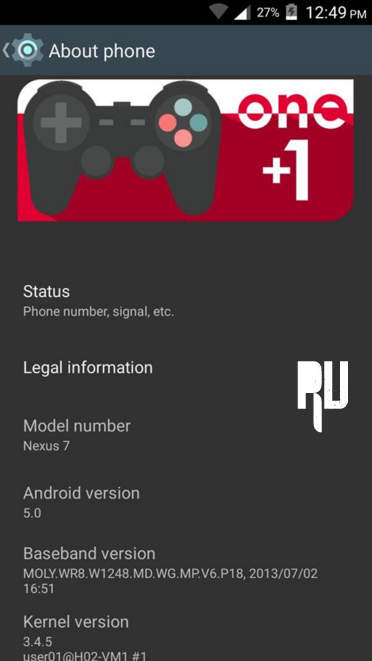
Here are some screenshots of the Android 6.0 marshmallow custom rom for Micromax Doodle 2 A240 . 

Android-6.0-marshmallow-custom-rom-micromax-canvas-doodle-2-a240

Android-6.0-marshmallow-custom-rom-micromax-canvas-doodle-2-a240

Android-6.0-marshmallow-custom-rom-micromax-canvas-doodle-2-a240

So this was our guide on How to Update Micromax Canvas Doodle 2 A240 to android 6.0 Marshmallow .