Showing posts with label without computer. Show all posts

Friday, 25 March 2016

How to Root Lenovo K3 Note on Android 6.0 Marshmallow without Pc .

Root Lenovo K3 Note K50-A40 , K50-T5 on android 6.0 Marshmallow .

Do you want to root Lenovo k3 note after Android Marshmallow 6.0 update without using computer ? Today we are here with a rooting guide on Lenovo k3 note running on android 6.0 marshmallow .

Lenovo k3 note was recently updated to android 6.0 marshmallow via ota and now after update we received many mails asking How to root K3 note on android 6.0 without using pc . Lenovo K3 note is one of the most popular smartphones in india and the main reason is its High end specifications in a affordable price tag . So lets have a look at the specifications of K3 note . K3 note comes with a 5.5 inch full high definition screen with a pixel density of 401 pixels per inch , In the camera section there is a 13 mega pixel primary unit and a 5 mp camera is installed at the front end . Under the hood there is a 1.7ghz mediatek octa core processor coupled with 2gb of ram . For power there is a 3000 mah battery . And now after the update the smartphone runs on android 6.0 Marshmallow so today we are here with a guide on How to root Lenovo k3 note Indian version on android 6.0 marshmallow .

root-lenovo-k3-note-on-android-marshmallow-without-computer

How to root Lenovo K3 note After android marshmallow 6.0 update .

Before rooting Lenovo k3 note here are some prerequisites :- 

  • You should be on CWM / TWRP recovery .
  • You should be on Android 6.0 marshmallow .
  • Minimum battery available should be 50% .
If you haven't yet updated your Lenovo k3 note to marshmallow then you can follow our guide on How to update lenovo k3 note to android 6.0 marshmallow .

So starting with the guide .

  • First of all Download Supersu for android 6.0 Marshmallow From Here .
  • After downloading Supersu , move the file from Downloads folder to root of sd card .
  • Now boot your smartphone in Twrp recovery Mode .
  • You will see many options .
  • Tap on install Button and choose the Super su you downloaded earlier .
  • The rooting Procedure will Hardly take 1 minute .
  • After rooting reboot your lenovo k3 note .
  • Now you will see a Supersu App in your app drawer .
  • Open that , if asked to update the super su binary choose yes update now .
  • Thats All !!!! you have successfully rooted your lenovo k3 note running on android 6.0 marshmallow .
So this was our guide on How to root android lenovo k3 note on android 6.0 marshmallow .

Sunday, 21 February 2016

How to Root Lenovo K4 Note Without Pc .

How to root Lenovo Vibe k4 note without using Computer .

Do you want to root your lenovo k4 note ? if yes then you are at right place . Today we are here with a guide on how to root the lenovo k4 note by using a android app .

Lenovo k4 note is the successor of Lenovo k3 note . this smartphone was launched in the first month of January . Undoubtedly this is one of the best smartphone in the sub 12k segment smartphones . Lenovo k4 note comes with some high end features like the 3Gb ram , 5.5 inch full Hd display, Nfc chip , fingerprint sensor and 13+5 Mega pixel camera . So today we are here with a guide on how to root lenovo k4 note without pc .


lenovo-k4-note-root

Lenovo Vibe K4 Note Root .

After rooting the k4 note your warranty will get voided however if you want it back then you can get it back by unrooting the K4 note . 

Here are some points you need to take care before rooting Lenovo k4 note :- 


  • Make sure the device is charged upto 60% .
  • Make backup of your important files and contacts .

  • First of all Download the rooting app from HERE .
  • Now go to settings and enable third party installations .
  • After enabling third party installations install the rooting app you downloaded earlier .
  • Now open the app and ignore all options .
  • In last you will see a " Root Now " Option just choose it .
  • It will take some time to root .
  • After the successful root you will see a notifications saying .
  • Device successfully rooted .
Now in last just to check if the lenovo k4 note is rooted or not . Download a app from google play store Named as " Root Checker " .

So this was our guide on How to root Lenovo K4 Note without using computer . I hope this guide helped your in rooting your Lenovo K4 note without using computer .

Sunday, 14 February 2016

Root Letv LeEco Le1s Without Computer .

How to Root Letv LeEco Le 1s Without using Laptop Or Pc ?

Do you want to root Letv Le 1s without using Computer ? And finding a Android app to root your LeEco Le1s ? if yes then you are at right place . Today we are here with a guide in which we will tell you the easiest and the safest way to root LeEco le 1s by using a Android application .

The method we will use today to root the leeco le 1s doesnt need any drivers or a pc . All you need to do is just download a app and install it in your Le1s .


how-to-root-letv-le1s

Root Letv Le1s by Android App .

As we already told you that we will not use pc or Laptop to root the letv le1s . so before going to the rooting procedure Here are some Points you have to remember :- 

  • After rooting Letv Le1s your warranty will be voided .
  • To root the device you should charge the battery to minimum 60% .
  • It is recommended to make a backup of all important contacts and files .

Easy and Safe Method to Root LeEco Le1s .

  • First of all Download KINGROOT .
  • After Downloading go to settings of LeEco le1s .
  • Now enable third part installations .
  • After that install Kingroot .
  • Now open the app from App drawer .
  • Now skip all options .
  •  you will see a Option " Root Now " .
  • Just tap on that .
  • As soon as you tap on root now the loading bar will increase .
  • After Completing to 100% you will See a Notification saying " Root Successfully " .
Thats all , Now you can check the root status of your LeEco le1s by downloading Root Checker App from Google Playstore .

So this was our guide on How to root LeEco Le1s without Using computer , I hope this guide helped you in Rooting your Letv Le1s by using a Android application .

Sunday, 7 February 2016

Solve No Messages Notification Problem In Whatsapp Without root .

How to Fix No Messages and Notification Problem in Whatsapp ? 

Do you have Notification problem in whatsapp ? and Do you receive whatsapp mesages late ? if yes then you are at right place . Today we are here with a guide on how to fix Delay messages problem in whatsapp . 

Whatsapp is the largest social messaging app used worldwide . recently whastapp officials released a report in which they said that now whatsapp has crossed 1 billion user base . The best part about whatsapp is that it is available for almost every OS , But also there is a bitter truth of whatsapp that many users are facing late messages delivery problem in whatsapp . Some reported that they get messages only when they open whatsapp . So today we are here with a solution of Whatsapp notifications problem . 


fix-no-notification-messages-problem-in-whatsapp

How to Fix Late Whatsapp Messages Notification Problem ? 

Before going to the guide lets have a look at some of the main reasons of the cause of No notification problem in whatsapp :- 

Task Manager :- 

Sometimes users install third party task managers to get more ram space , The moment when they kill all tasks whatsapp also gets closed . And that's why they don't receive whatsapp messages on time and until they open whatsapp .

So the solution to this problem is :- just add whatsapp in exception list in your task manager .

Force Stop :- 

Now a days android smartphone's come with Force Stop feature which not only increase the speed of smartphone but also make a big effect on the battery life . So when you press the home or menu button and force stop all apps the whatsapp application also gets force stopped .

Here is How to fix that :- Just drag down the whatsapp application and lock it from Force stopping .

Solution For Whatsapp messages Notification problem .

  • First of all Download Push Notification App From Playstore.
  • Let the App Install .
  • After installing Open the Push Notification Fixer App .
  • Now After opening the App you will see many options .
First of all Choose
fix-no-notification-messages-problem-in-whatsapp
  • Mobile heartbeat interval and set it to 3 Minutes .
fix-no-notification-messages-problem-in-whatsapp

  • Then choose Wi-fi Heartbeat interval and set it to 2 Minutes .
  • After doing both the above steps tap on apply settings .
fix-no-notification-messages-problem-in-whatsapp
  • Now just make a reboot of the device to make the changes take effect .
And that's all !!! you have successfully solved the no notification problem in whatsapp without root .

So this was our guide on how to solve no messages notification problem in whatsapp .

Saturday, 6 February 2016

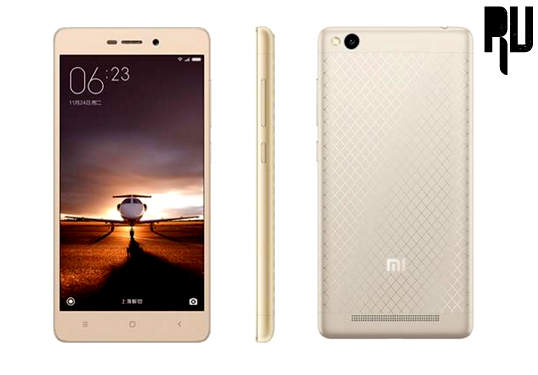
How to Root Xiaomi Redmi 3 Without Pc .

Root xiaomi redmi 3 without using computer .

Do you want to Root Xiaomi redmi 3 without using Pc ? If yes then you are at right place . Today we are here with a guide in which we will tell you method to root Xiaomi redmi 3 by using android app . 

Xiaomi redmi 3 is the successor of the Xiaomi redmi 2 prime which was one of the most selling device worldwide . Redmi 3 is the very first device from xiaomi in the year 2016 in the Budget level segment . Before going to the Rooting Redmi 3 guide let us have a Quick look at the specifications . Xiaomi redmi 3 comes with a 5 Inch Hd Display ( 720X1280) with a Pixel density of 244 Pixels per inch . 

Xiaomi redmi 3 Comes with a 1.7Ghz Qualcomm Snapdragon 616 Octa core processor Coupled with 2Gb ram which makes the smartphone Capable of Heavy multitasking and gaming .

The redmi 3 comes with 13 Mega pixel rear camera , This is the biggest upgrade over the redmi 2 prime which used to come with 8 Mp primary camera . At front there is a 5 mega pixel camera for Good and clear selfies . for Storage there is a 16 Gb internal storage which can be further expanded upto 128 Gb by using a Memory card . 


The best thing about the xiaomi redmi 3 is its massive 4100 Mah battery Which can last upto 2 days with heavy usage . 

Okay so Heading towards our Guide on How to root Xiaomi redmi 3 without using computer .

root-xiaomi-redmi-3-without-using-computer

How to Root Xiaomi redmi 3 Using App .

So In this guide we will use a android Rooting application to root Xiaomi redmi 3 . Before rooting the redmi 3 Below are some Prerequisites you need to do :- 

  • Make sure that redmi 3 is minimum charged to 60% .
  • Make a Backup of all your Important files and contacts .
  • After rooting Redmi 3 your warranty will get voided , However you can get it back by unrooting .
Okay now Starting with the Rooting Of Xiaomi redmi 3 .

Rooting Procedure Of Xiaomi redmi 3 .

  • First of all Download the Xioami Redmi 3 Apk from HERE .
  • After Downloading .
  • Install the Apk As normal App .
  • Now Go to Developers option .
  • Enable Usb Debugging Mode .
  • After Doing All the Above Steps .
  • Go to App Drawer And open The Redmi 3 Rooting App you downloaded earlier .
  • After opening You will see a Root Option , just press that .
  • After sometime your Xiaomi redmi 3 Will be rooted .
Thats all , You have successfully rooted your Xiaomi redmi 3 Without using pc .

Now to check if your Redmi 3 is rooted or not You can simply download a App from Google Play store named as " Root Checker " to check .

So that was our guide on How to Root Xiaomi redmi 3 without using pc , I hope this guide helped you in rooting your redmi 3 .

Tuesday, 8 December 2015

How to Root Samsung Galaxy J2 In Just 2 Steps .

How to Root Samsung Galaxy j2 with And Without Using Computer . 

Do you Want to Root Samsung Galaxy J2 with and And without using Computer ? Then you are at Right Place . Today we are Here with a guide on How to root Samsung Galaxy j2 Easily in just 2 simple steps . 

Samsung Galaxy J2 is a Mid range device from samsung with Pretty Decent features and a affordable price tag . The best thing about this smartphone is that it is still supported by Samsung official Developers which means the device will get android updates and bug fixes . But unfortunately one thing which was disappointing everyone was that they could not find a way to root samsung Galaxy j2 because of software and Hardware limitations but luckily we found a way with anyone can root their samsung galaxy j2 without using computer . 

How to update Samsung Galaxy s3 to android M 6.0 Marshmallow 

Basically we have two methods for rooting the samsung Galaxy j2 . The first One is without using Computer and the second one is with using computer . 

root-samsung-galaxy-j2-without-using-computer

How to root Samsung Galaxy j2 Without using computer .

This method of rooting The samusng Galaxy j2 is  tested by us .And  we dont take any guarantee and neither we will be responsible for any kind of damage caused to your device . 

Update - This rooting method is not working anymore .

This Guide is Based on a App That roots almost every Android 5.1.1 lollipop running devices so there are certain chances that it can also root samsung galaxy j2 .

Okay now so starting with the Guide :- 

  • First of All Download the Kingroot App From Here
  • After Downloading install it as Normal app . 
  • Now Launch the app . 
  • As soon as you launch the Kingroot app 
  • you will be shown some benefits of rooting The device .
  • Now Here comes the rooting part .
  • The App Will Scan your device for its model number .
  • After Scanning it will show you if it is rooted or not , Obviously it isn't . 
root-samsung-galaxy-j2-without-using-computer

  • You can see that , The app says that Root strategy is Available which means that it can root Samsung Galaxy j2 . 
  • Now Choose Try To root . 
  • As soon as you choose try to root the app will start Rooting The samsung galaxy j2 . 
root-samsung-galaxy-j2-without-using-computer
  • After Some time when the Loading Bar reaches 100% Your samsung galaxy j2 will be rooted . 
  • Thats all you have successfully rooted your samsung galaxy j2 . 
To root your Samsung galaxy j2 via computer Follow the Below Steps :-


  • First of all Download the Kingroot For Windows from Here 
  • Now install It .
  • After installing it .
  • Go to settings of your device and enable Usb debugging .
  • Now Connect your samsung galaxy j2 via usb cable and wait for the Software to detect .
  • Sometimes the Drivers are missing from the computer or laptop so the Software will Download and Install them automatically .
  • After the Successful installation you will see that your device has been recognized by the software .
  • Now Simply choose Root .
  • And thats all you have successfully rooted your samsung Galaxy j2 .
So This was our guide on How to Root Samsung Galaxy j2 easily in 2 steps with and without computer and Please let us Know if it worked for you .
root-samsung-galaxy-j2-without-using-computer